The following tutorial guides you how to define company in SAP step by step with screen shots. Let us discuss briefly about company.
Define Company in SAP
About Company in SAP:- Company is theorganizational unit for which individual financial statements can be drawn according to the relevant commercial law. A company can comprise of one or more company codes. A Company has local currencies in which its transactions are recorded. All company codes within a company must use the same transaction Chart of accounts and the same Fiscal Year. Creation of company in sap is optional.
Path to Define Company in SAP :-
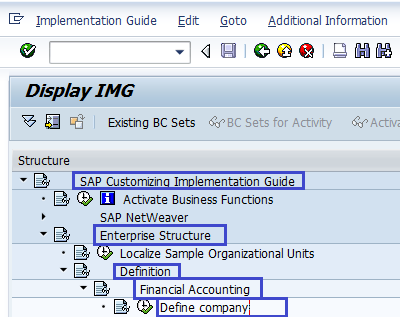
SAP IMG Path: – SPRO –> Implementation Guide for R/3 Customizing (IMG) –> Enterprise Structure –> Definition –> Financial Accounting –> Define Company
Transaction code to “Define Company in SAP” :- OX15
Steps for creation of Company: –
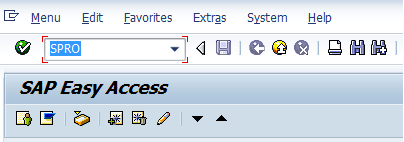
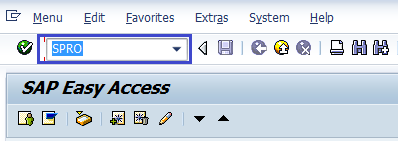
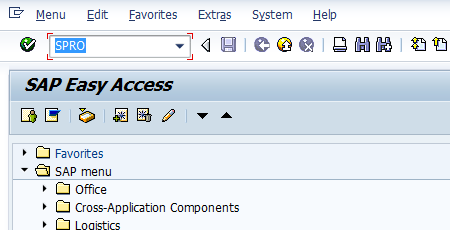
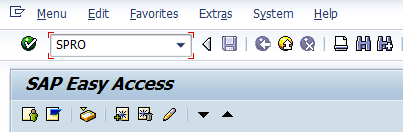
Step 1 :- Enter Transaction Code SPRO in the commend field and press enter on the Keyboard
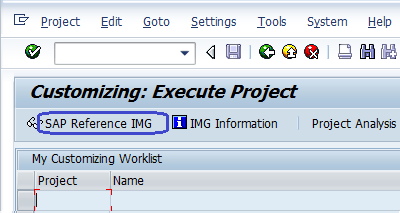
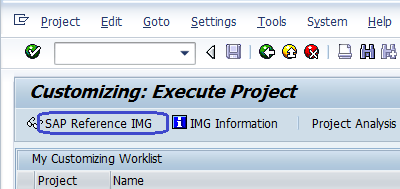
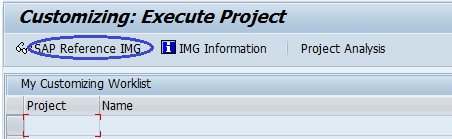
Step 2 :- Next Customizing execute project screen select SAP Reference IMG
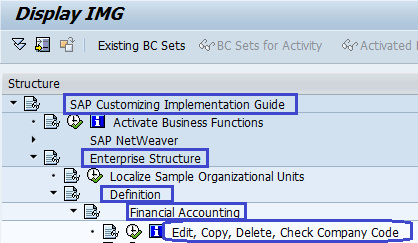
Step 3 :- After Selecting SAP Reference IMG, a new screen IMG Path will be displayed. SelectDefine company execute icon for creating a company
Next Screen will be displayed after selecting the define company execute icon
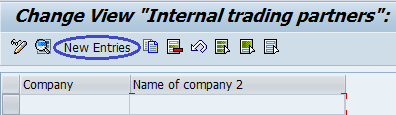
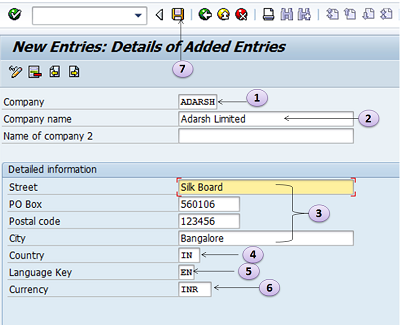
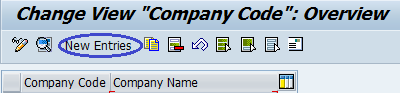
Step 4:- Now Select New entries icon and enter the company details
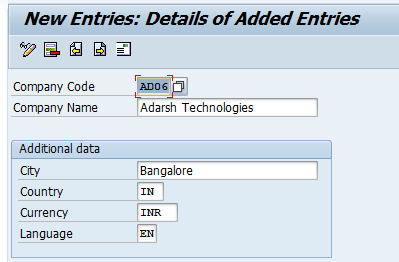
The following details are to be entered for creating a new company
- Enter 6 character alphanumeric code key that represents the group of company
- Enter name of your company
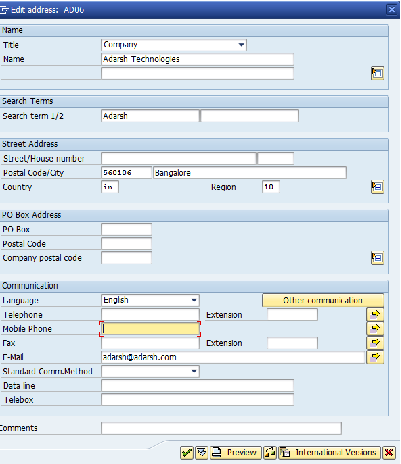
- In the Detailed information update the address – Street name, PO Box#, Postal code, City.
- Enter Country Code of the company
- Enter language key
- Enter local currency for the company (also known as Company code currency)
- Click on Save icon or CTRL+S after updating the required information
Thus new Company ADARSH is created in SAP.
How to Create Company Code in SAP | Define Company Code in FICO
The following tutorial guides you how to define company code in SAP FI step by step with screen shots. After configuring company, next step is to configure the company code. Let us discuss briefly about company code.
Define Company Code
About Company Code :- Company Code in SAP is the smallest organizational unit of Financial Accounting for which you draw individual financial statements like Balance Sheet and Profit & Loss Account for purpose of external reporting. The Creation of company code in sap is mandatory
PATH :- IMG Reference –> Enterprise Structure –> Definition –> Financial Accounting –> Edit, Copy, Delete Company Code
Transaction code to Define company Code :- OX02
Steps to Define Company Code: -
Step 1 :- Enter Transaction Code SPRO in the commend field and press enter
 Steps 2 :- In customizing execute project screen select SAP Refe
rence IMG
 Step
Step
3 :- In next screen select Edit, Copy, Delete check Company Code
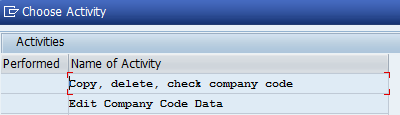
Step 4 :- The below screen displays after selecting Edit, Copy, Delete Company Code ( Define Company Code )
we can create company code by selecting above two options. By selecting first option copy, Delete, company code all the configuration and tables get copied automatically along with assignments.
Here we are creating company code manually configure all the assignments by selecting second option Edit Company Code Data . Double click on Edit Company Code
Data
Step 5
:- Click on New Entries and update the following details
1. Update new Company code key AD06
2. Give the company name Adarsh Technologies for identifying the company code key
3. In Additional Data update the details of City, Country, local Currency of company, Language.
Click on Address and Update the following fields
 After updating Address enter Click on Save icon
 Thus the company code AD06 is created in SAP
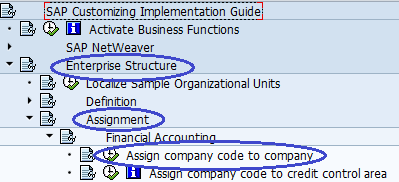
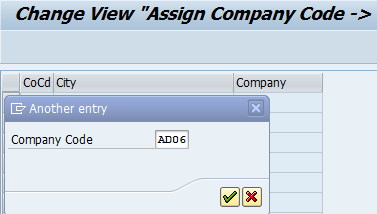
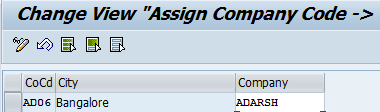
How to Assign Company Code to Company in SAP
Define Business Area in SAP
Definition of Business area :- Business area is a separate area of operations or responsibilities of organizational units of financial accounting that is used for internal and external reporting . Different divisions of each business with in a legal entity are created as Business areas for reporting of each operational areas. So Financial statements can be created for each business area and this financial statements can be used for internal reporting purpose.
Business areas are not assigned to any company codes.
Transaction Code for Creation of Business Area in SAP :- OX03
Steps for the Creation of New Business Areas in SAP :-
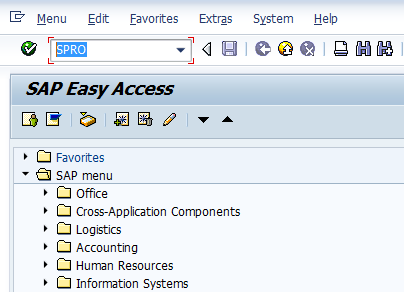
Step 1 :- Enter transaction code SPRO in the commend field
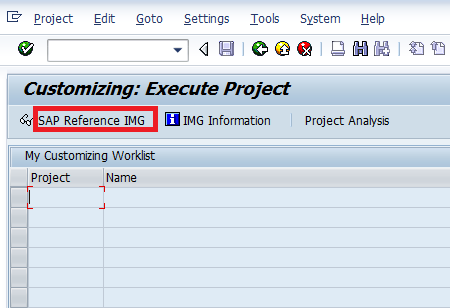
Step 2 :- Select SAP Reference IMG ( Shortcut key F5 )
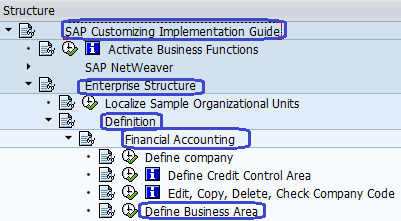
Step 3 :- After selecting SAP Reference IMG, follow the below structure to configure the Business areas
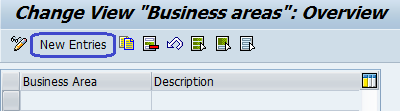
Step 4 :- After Selecting Define Business Area, Select new entries to configure new Business areas
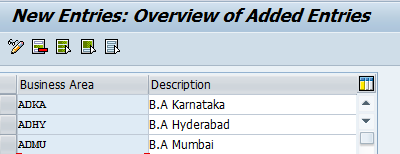
Step 5 :- Enter the 4 digit code in the business area field and enter the name of business areas in the description field and save the settings.
Thus Business Areas ADKA, ADHY, ADMU are configured in SAP FICO .
Configuration of Functional Area in SAP FICO | Define Functional Area
The credit control area is an organizational unit that specifies and checks a credit limit for customers. Credit control area can includes one or more company codes
Steps for Define Credit Control Area :-
Transaction Code to Define Credit Control Area – OB45
IMG Menu Path :-
SPRO –> Implementation Guide –> Enterprise Structure –> Definition –> Financial Accounting –> Define Credit Control Area
Step 1 :- Enter T-Code SPRO in the Command Field and press enter
Step 2 :- Click SAP Reference IMG
Step 3 :- Follow the IMG Menu path
Step 4 :- In next screen click on new entries
Step 5 :- Update the required data
1. Credit Control area :- Enter four digits credit control area code
2. Currency :- Update currency of the credit control area
3. Credit limit :- Update credit limit amount for the customers
Step 6 :- Click on save icon to save the new credit control area
Thus credit control area in SAP was successfully configured
Assign Company Code to Credit Control Area in SAP
Steps for Assign company code to credit control area
IMG Menu Path :-
SPRO > Implementation Guide > Enterprise Structure > Assignment > Financial Accounting > Assign company code to credit Control Area
Step 1 :- Enter T-Code SPRO in the Command field and press enter
Step 2 :- Click on SAP Reference IMG ( short cut key F5 )
Step 3 :- Follow the menu path for Assigning Company Code to Credit Control Area
Step 4 :- In next screen click on Position icon and update the company code and press enter
Step 5 :- In next screen, update the credit control code in the CCAr field and
Step 6 :- After updating credit control code click on save icon
Thus company code successfully assigned to credit control area.
SAP FI – Financial Accounting Global Settings
Create Fiscal Year Variant in sap | Fiscal year Accounting Period
Fiscal Year Variant in sap
Definition Fiscal year :-
A fiscal year is divided in to number of posting periods and each posting period in a accounting period is defined by a start date and end date
Fiscal year in SAP can be defined as year dependent or Year Independent
Year independent – Same number and dates for the periods every year
year dependent – Periods can be different from year to year
Define Fiscal year Variant :- Fiscal year variant is used to define the fiscal year
A Fiscal year variant contains the 12 normal posting periods and 4 special periods. We can define maximum 16 posting periods for each year. Special periods are used for Year end activities
Steps for configure the Fiscal year variant :-
Step 1 :-
Enter SPRO Transaction Code in the SAP Commend field and press enter
Step 2 :-
In the next screen select SAP Reference Img
Step 3 :-
In the next screen Display Img , follow the Menu path
SAP Reference IMG –> Financial Accounting –> Global Settings –> Fiscal Year –>Maintain Fiscal Year Variant
Step 4 :-
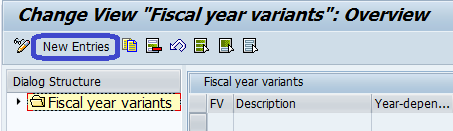
In the next screen select New Entries to create Fiscal year
Step 5 :-
New entries to Create fiscal year variant screen, update the following information.
1. In the field Fiscal year variant FV enter the two digits unique code
2. In the description field update the name of Fiscal year Variant
3. Select the year-Dependent option if the Periods are different from year to year
4. Select Calendar yr option if same number and dates for the periods of every year
5. Update 12 in the Number of Posting periods field
6. Update 4 in the No. of Special Periods Field.
After updating the required data and click on save icon
Step 6 :-
Block Fiscal Year Variant AD and Double Click on Periods folder
Step 7 :-
Select New Entries Button
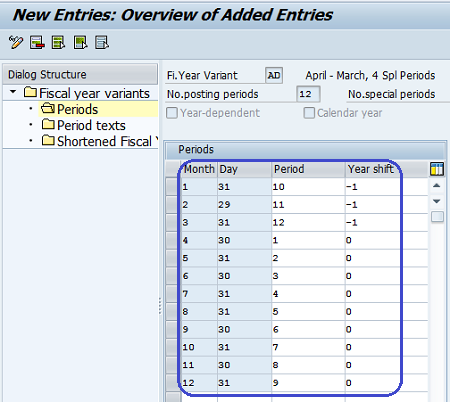
Step 8 :- Maintain the Periods for the Fiscal Year
First Coloumn - Month
Second Coumn - Day
Third Column - Period
Fourth column - Year Shift
After Maintain Fiscal Year Variant Periods, Click and Save icon.
How to Assign Company Code to Fiscal Year Variant
This Tutorial Guides you How to Assign Company Code to Fiscal Year Variant
Single Fiscal Year Variant can be assigned for multiple company codes. The link between Fiscal Year Variant and Company Code is established through the assigning Company Code to Fiscal Year Variant.
Path for Assign Company Code to Fiscal Year Variant
SPRO > Implementation Guide for R/3 Customizing (IMG) –> Finance Accounting –> Finance Accounting Global Settings –> Fiscal Year –> Assign Company Code to Fiscal Year variant
Transaction Code for Assign Company Code to Fiscal Year Variant
T Code > OB37
Assign Company Code to Fiscal Year Variant Configuration Steps :-
Step 1 :-Type SPRO in the Command Field of the SAP Easy Access Menu Screen and press enter key on the Keyboard.
Step 2 :- Click SAP Reference IMG Icon,
Step 3 :- In next screen follow the Path Assign Company Code to Fiscal Year Variant
Step 4 :- Click Position 
Step 5 :- After selecting position, update the company code and press enter
Step 6 :- In next screen Update fiscal year variant field for the required Company Code and Press enter on the keyboard.
Step 7 :- Click the Save Icon located at the upper left corner of the screen to save the updated data.
Thus Company Code AD06 is successfully assigned to Fiscal year Variant AD .
How to Create Posting Period Variants | SAP PPV
This SAP Fico Tutorials guides you how to Create posting period Variants
Posting Period Variant is accountable for the opening and closing of periods in a Fiscal Year for postings to take place. The Posting Period Variants ( PPV ) in SAP is used to control which accounting period is open for postings and ensuring that closed period remain balanced and reconciled. we can assign posting period variants to one or more company codes.
Posting Periods are opened and closed for all company codes in SAP by the PPV.
Steps to Create Posting period variants in SAP :-
Step 1 :-Type SPRO in the Command Field of the SAP Easy Access Menu Screen and press Enter key on the Keyboard.
Step 2 :- Click SAP Reference IMG Icon
Step 3 :- In next screen follow the menu path to create posting period variant
IMG Menu Path :- SPRO > Implementation Guide for R/3 Customizing (IMG) –> Finance Accounting –> Finance Accounting Global Settings –> Documents –> Posting Periods –> Define variants for open p osting periods
Step 4 :- The define posting period variants screen is displayed, Click on new entries to create SAP PPV
Step 5:- Enter four digit code in the Variant field, update variant name in the name field. Here we created posting period Variant ADO6
Step 6 :- After updating posting period variant and name fields click on save icon to save the data.
Thus Posting Period Variant AD06 is defined ..
Define Variant for Open and Close Posting Periods | SAP OB52
This FICO Tutorials Guides you how to Define Variant for Open and Close Posting Periods
Purpose of Open and Close Posting periods Configuration:-
The posting periods can be maintained as per account type and the year which is to be open & which is to closed. The Posting Period Variant is used to control which accounting period is to be open for posting and ensuring that closed periods are remain balanced and reconciled
Path for Define open and close posting periods:-
Implementation Guide for R/3 Customizing (IMG) –> Finance Accounting –> Finance Accounting Global Settings –> Documents –> Posting Period –> open and close posting periods
Transaction code open and close posting periods :- OB52
Step 1 :-Type SPRO in the Command Field of the SAP Easy Access Menu Screen and press Enter key on the Keyboard
Step 2 :- Click SAP Reference IMG
Step 3 :- In next screen follow the menu path to Define Variant for open and close posting periods
Step 4 :- Click on New entries to Define Variant for Open and Close Posting Periods
Step 6 :- In Next screen update the required data as described below
1.Variant:- Enter four digits Posting Period variant Code
2. A:- Select Account Type ( A )
+ = Valid for all Account Types (masking)
A = Assets
D = Customers (A/R)
K = Vendors (A/P)
M = Materials
S = General Ledger Accounts.
3.From Account:- Keep Blank
4.To Account:- Update Account
5. From Period 1:- Enter Starting Period
6.Year:- Enter Year
7.To Period:- Enter Ending Period
8.Year:- Enter Year
9.From Period 2:- Enter First Special Period
10.Year:- Enter Year
11.To Period:- Enter Special Period
12.Year:- Enter Year
13.Authorization group ( AuGr ):- You can assign authorization groups in which some periods can only be opened for particular users
14. Click on save icon to save the defined open and close posting periods
Thus Open and Close Posting Periods are configured in SAP.
Assign Posting Period Variant to Company Code
This SAP Fico tutorials Guide you how to Assign Posting Period Variant to Company Cod
e
I
n this activity you assign the same Posting Variant Key to the company codes .
Transaction code for Assign Posting period Variant to Company Code :- OBBP
IMG Menu Path :-
SPRO > Implementation Guide for R/3 Customizing (IMG) –> Finance Accounting –> Finance Accounting Global Settings –> Documents –> Posting Period –> Assign Variants to Company code
Steps to Assign Posting Period Variant to Company Code
Step 1 :- Enter transaction code SPRO in the SAP Command field and press enter
Step 2 :- Select SAP Reference IMG 
Step 3 :- In next screen follow the path
Step 4 :- Click on Position
Step 5 :- After clicks on position enter the company code and press enter on key board
Step 6 :- In next screen update Posting Period variant Code AD06 in the Variant field
Step 7:- After updating Posting period variant Click on Save icon.
Thus Posting Period Variant is Assigned to Company Code .
Define Field Status Variant in SAP | Field Status Group
SAP Fico Tutorials guides you how to define field status variant in sap
The field status group specifies which fields are ready for input, which are required entry fields, and which are hidden when entering documents.
Description and Configuration values of Field Status Group
| FStGroup | Text |
| G001 | General (with text, assignment) |
| G003 | Material consumption accounts |
| G004 | Cost accounts |
| G005 | Bank accounts (obligatory value date) |
| G006 | Material accounts |
| G007 | Asset accts (w/o accumulated depreciation) |
| G008 | Assets area clearing accounts |
| G009 | Bank accounts (obligatory due date) |
| G011 | Clearing accounts (with settlement per.) |
| G012 | Receivables/payables clearing |
| G013 | General (obligatory text) |
| G014 | MM adjustment accounts |
| G017 | Freight/customs provisions/clearing (MM) |
| G018 | Scrapping (MM) |
| G019 | Other Receivables/Payables |
| G023 | Plant maintenance accounts |
| G025 | Inventory adjustment accounts |
| G026 | Accounts for down payments made |
| G029 | Revenue accounts |
| G030 | Change in stock accounts |
| G031 | Accounts for down payments received |
| G032 | Bank accounts (obligat. value/due dates) |
| G033 | Cost accounts for external services |
| G036 | Revenue accts (with cost center, PA) |
| G039 | Accts for pmnts on acct made for assets |
| G040 | Personnel clearing accounts |
| G041 | Tax office clearing accounts |
| G045 | Goods/invoice received clearing accounts |
| G049 | Manufacturing costs accounts |
| G050 | Central control clearing accounts |
| G052 | Accounts for fixed asset retirement |
| G056 | Amortization accounts |
| G059 | Inventory accounting material stock acct |
| G062 | Investment support accounts |
| G064 | Other cost accounts (obligatory text) |
| G067 | Reconciliation accounts |
| G068 | Reconciliation accts (payables – Austria) |
| G069 | Cost accounts (travel expenses) |
| G070 | Clearing accounts (travel expenses) |
| G071 | Reconciliation accts ( KIDNO /Foreign payment) |
Steps to Define Field Status Variant
Step 1 :-
Enter T-Code SPRO in the Command Field of the SAP Easy Access Menu Screen and press Enter key on the Keyboard
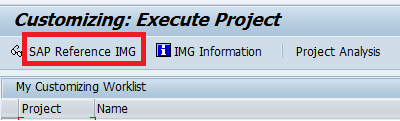
Step 2 :- In next screen click on Click SAP Reference IMG Icon
Step 3 :-
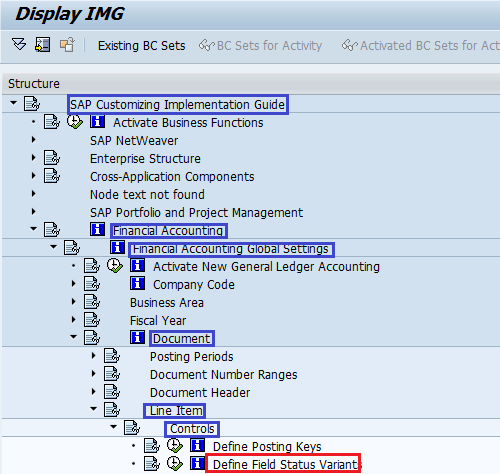
Implementation Guide for R/3 Customizing –> Finance Accounting –> Finance Accounting Global Settings –> Documents –> Line Item –> Controls –> Define Field status variants
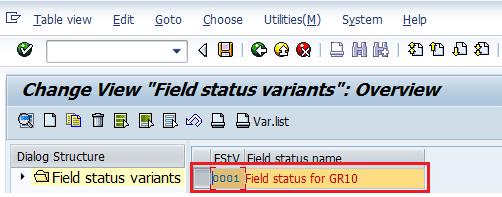
Step 4 :- In Next screen block 001 Field status variant
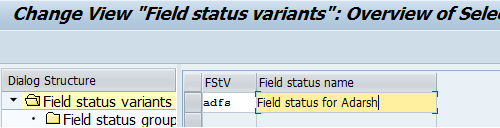
Step 5:- After selecting 0001 field status variant click on copy as icon ( short cut Key F6). In next screen update required new Field Status variant Code and Update Field status variant Name
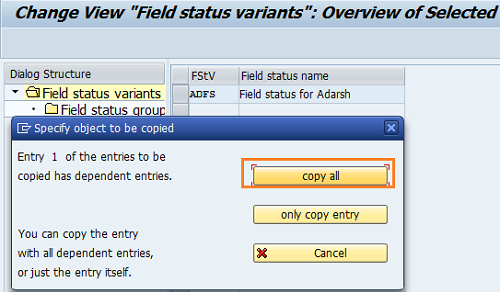
Step 6 :- After updating Field Status variant and Field Status Name, press Enter key on the Keyboard. Select copy all button
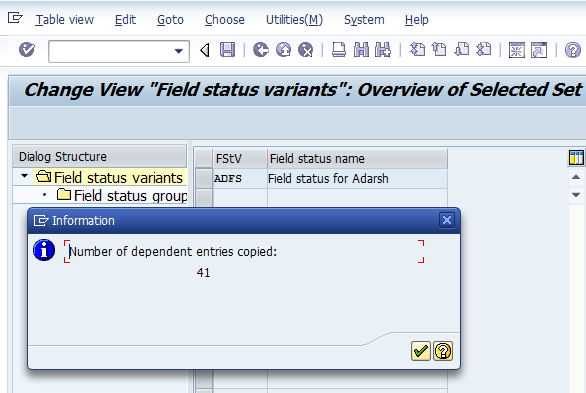
Step 7:- We get a message number of dependent entries copied as 41
Step 8:- Enter and select save button or CTRL + S
We successfully configured Field Status variant
Assign company code to field status variants SAP FICO
This SAP FICO Tutorial Guides you how to Assign company code to field status variants in SAP FICO
Transaction Code Assign company code to field status variants :- OBC5
IMG Menu Path :- Implementation Guide for R/3 Customizing (IMG) > Finance Accounting –> Finance Accounting Global Settings –> Documents –> Line Item –> Controls –> Assign Company code to Field Status Variants
Steps for Assigning company code to field status variants :-
Step 1 :-
Enter T-Code SPRO in the Command Field of the SAP Easy Access Menu Screen and press Enter key on the Keyboard
Step 2 :- In next screen click on Click SAP Reference IMG Icon
Step 3 :- In next screen follow the menu path
Step 4 :- In next screen Click on position and update the company code and press enter
Step 5 :- In next screen update field statues variant in the Fld Stat.Var. field
Step 6 :- After Assign company code to field status variants, Click on save icon to save the configuration settings
Thus Company code AD06 is successfully assigned to field status variants.
Define Posting Keys
Posting Keys :- Posting key in SAP is a two digits numerical key that determines the type of transaction entered in a line item
Posting Keys Determines :-
1. Account Types ( A, D, K, M, S )
2. Type of postings i.e Debit or Credit
Account Types in SAP :-
1. Assets
2. General Ledger
3. Customer
4. Vendor
5. Material
Account Type Customer posting keys :-
| Posting Key | Description | Account Type Debit/Credit |
| 1 | Invoice | Customer Debit |
| 2 | Reverse credit memo | Customer Debit |
| 3 | Bank charges | Customer Debit |
| 4 | Other receivables | Customer Debit |
| 5 | Outgoing payment | Customer Debit |
| 6 | Payment difference | Customer Debit |
| 7 | Other clearing | Customer Debit |
| 8 | Payment clearing | Customer Debit |
| 9 | Special G/L debit | Customer Debit |
| 11 | Credit memo | Customer Credit |
| 12 | Reverse invoice | Customer Credit |
| 13 | Reverse charges | Customer Credit |
| 14 | Other payables | Customer Credit |
| 15 | Incoming payment | Customer Credit |
| 16 | Payment difference | Customer Credit |
| 17 | Other clearing | Customer Credit |
| 18 | Payment clearing | Customer Credit |
Account Type General Ledger Posting Keys
| Posting Key | Description | Account Type Debit/Credit |
| 40 | Debit entry | G/L Debit |
| 50 | Credit entry | G/L Credit |
| 80 | Stock initial entry | G/L Debit |
| 81 | Costs | G/L Debit |
| 83 | Price difference | G/L Debit |
| 84 | Consumption | G/L Debit |
| 85 | Change in stock | G/L Debit |
| 86 | GR/IR debit | G/L Debit |
| 90 | Stock initial entry | G/L Credit |
| 91 | Costs | G/L Credit |
| 93 | Price difference | G/L Credit |
| 94 | Consumption | G/L Credit |
| 95 | Change in stock | G/L Credit |
| 96 | GR/IR credit | G/L Credit |
Account Type Asset Posting Keys
| Posting Key | Description | Debit/Credit |
| 70 | Debit Asset | Debit |
| 75 | Credit Asset | Credit |
| | |
Account Type Material Posting Keys
| Posting Key | Description | Account Type Debit/Credit |
| 89 | Stock inward movement | Material Debit |
| 99 | Stock outward movement | Material Credit |
Account Type Vendor Posting Keys
| Posting Key | Description | Account Type Debit/Credit |
| 21 | Credit memo | Vendor Debit |
| 22 | Reverse invoice | Vendor Debit |
| 24 | Other receivables | Vendor Debit |
| 25 | Outgoing payment | Vendor Debit |
| 26 | Payment difference | Vendor Debit |
| 27 | Clearing | Vendor Debit |
| 28 | Payment clearing | Vendor Debit |
| 29 | Special G/L debit | Vendor Debit |
| 31 | Invoice | Vendor Credit |
| 32 | Reverse credit memo | Vendor Credit |
| 34 | Other payables | Vendor Credit |
| 35 | Incoming paymen | | t | V | | endor Credit |
| 36 | Payment difference | Vendor Credit |
| 37 | Other clearing | Vendor Credit |
| 38 | Payment clearing | Vendor Credit |
| 39 | Special G/L credit | Vendor Credit |
Posting key Configuration Steps :- Transaction Code – OB41
Step 1 :- Enter T-Code SPRO in the Command Field and press enter
Step 2 :- Click SAP Reference IMG
Step 3 :- Follow the IMG Menu path
SPRO > Implementation Guide –> Finance Accounting –> Finance Accounting Global Settings –> Documents –> Line Item –> Controls –> Define Posting Keys
Step 4 :- Click on Create Icon
Step 5:- Update two digits numerical key code in the Posting key field and update name of the posting key in the name of the posting key field
Step 6 :- Update the following data
1. Debit/Credit indicator :- Select the debit or credit
2. Account Type :- Select appropriate account type
3. Other attributes :- Select appropriate attribute i.e Sales related or Special G/L
4. Reversal Posting Key :- Update the reversal posting key
Step 7 :- click on save icon
Posting key successfully configured in SAP
| Posting Key | Name | Debit/Credit |
| 70 | Debit asset | Asset Debit |
| 75 | Credit asset | Credit |